Controlling color
Knowledge base article
There are a few different methods to control color parameters within Follow-Me, each will have its own specific impact to your workflow or the end result for the operator and therefore the designer.
We try to provide options on this, but ultimately we aren’t trying to replace the lighting console. We just want to give the designer the ability to handoff simple color control to the Follow-Me operator.
Try each and experiment to see which works for your particular needs.
For flexibility, the color control can be mapped to the various triggers on the Follow-Me consoles.
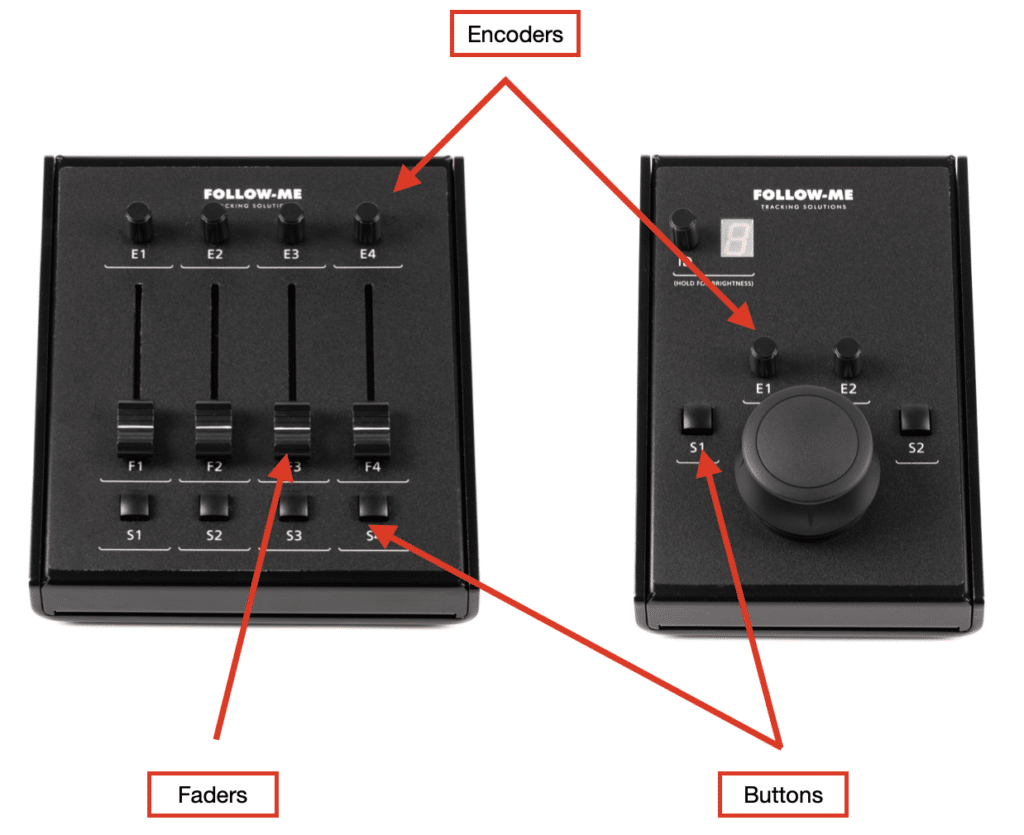
Method 1 – A basic mapping
The most basic method is the ability to add one or multiple color parameters to a mapping. This would allow the operator to have fader control of certain fixture parameters, in this case color.
This however isn’t the most flexible method as you’d need to pre program which operator would have control of which color parameters, and they will always control those color parameters even if the fixtures are aiming at another target than theirs.
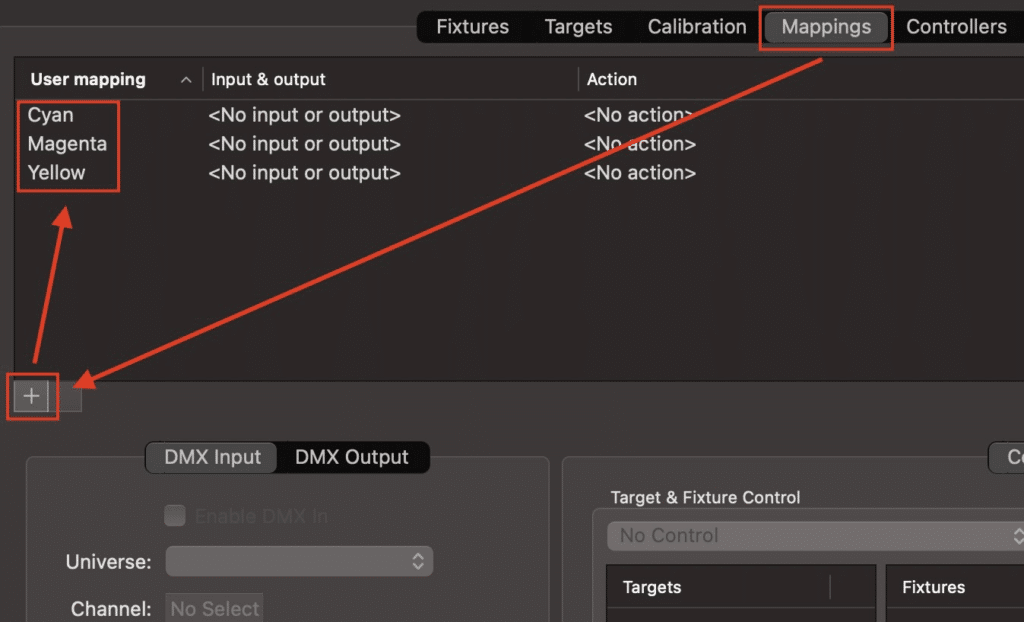
To try it, click on the mappings tab, add the mappings you wish using the ‘+’ symbol. Here below we’ve created a Cyan, Magenta and Yellow mapping.
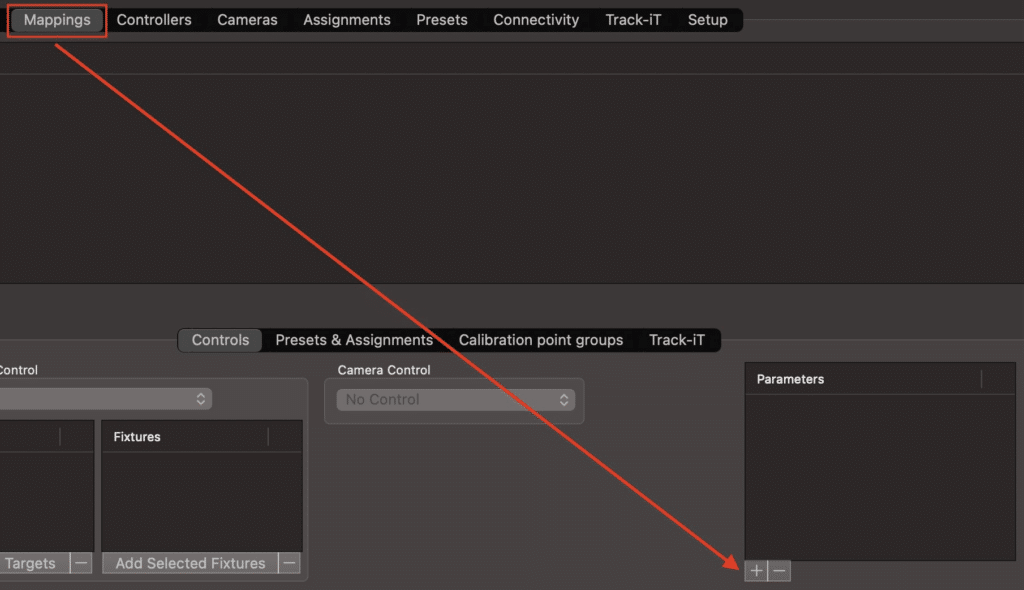
At the bottom right hand corner of the above window click on ‘Parameters’.
Select each Spot in turn, and add the color you want for each such as ‘Cyan’ below…
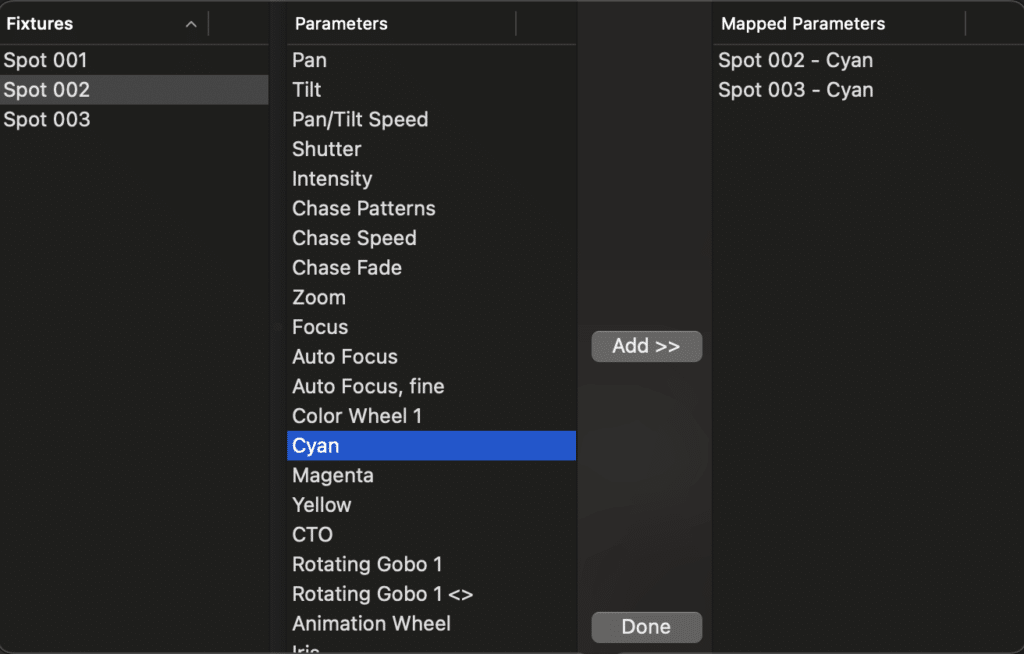
Click ‘Done’ and now assign this user mapping to a fader on the Follow-Me Fader Console in the ‘Controllers’ tab.
Alternatively, it can be put on an encoder (accurate, but slower to activate to full).
It could also work on a switch, but there would be no fade control and the switch must be held for the duration the color is needed. So, only really suitable for color bumps.
Method 2 – Target color presets
With this method you have the ability to set color parameters for fixtures that are currently assigned to a certain target.
This would allow the operator to set colors for the fixtures that are specifically assigned to their target. So they wouldn’t adjust fixtures that are currently aiming at another target.
Triggering this color would be done for example using one of the switch buttons on the Follow-Me Mouse or Fader consoles.
Go to the ‘Presets’ tab, click the ‘+’ to add a new preset and name it. In the color section tick the checkbox to use, then fill in the specific DMX value to achieve the precise color you want. Select the applicable Target, then press play to see it in reality.

To remove any color you’ve triggered, you’d need to make another preset color for open white, as seen below for this CMY mixing fixture. So, those checkboxes (even if showing ’0’ values) still need to be ticked –

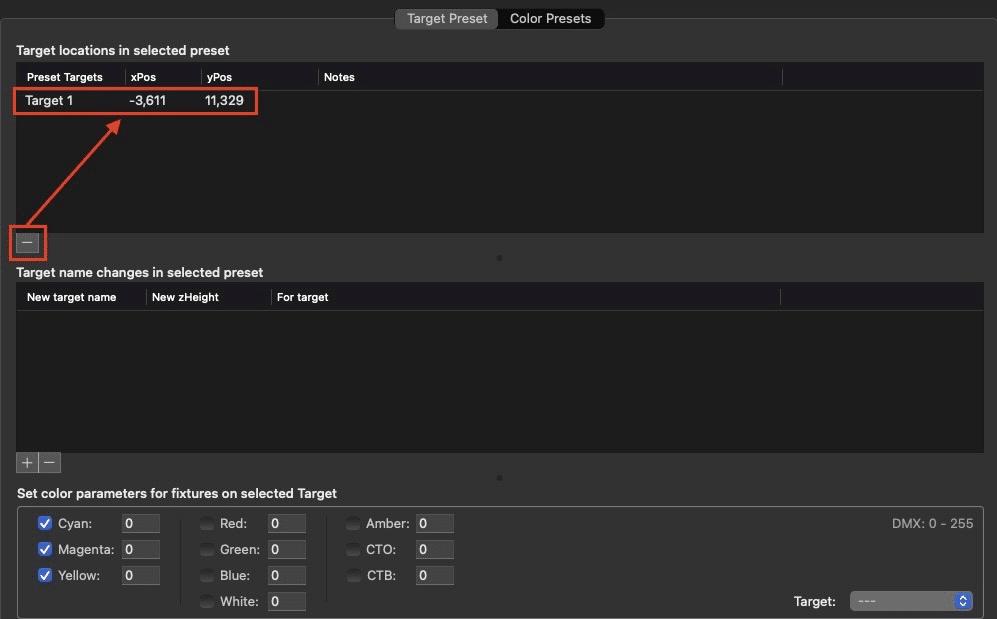
If you want it to be color only in the preset and not position too, just delete the position info using the ‘-‘ key –
Method 3 – General color presets
The final method is using the general color presets – This probably offers the most comprehensive and flexible color control.
This would allow you to set color values for several fixtures, and activate those on a button press or mix in the colors using a fader. Follow-Me will look at which fixtures are currently assigned to your target, and only modify those fixtures.
We can see these general color presets within the other tab within the “Presets’ tab –

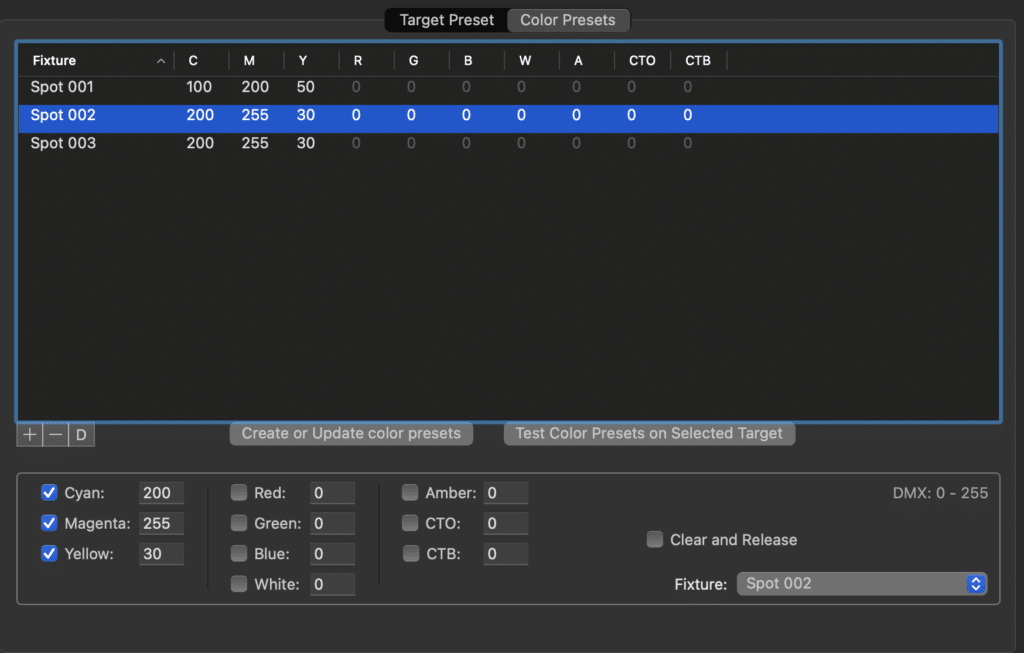
You can tick the relevant checkbox and use whatever color values you like.
Once you created the preset you can test it on the selected target using the relevant button.
You can even create a clear and release preset that will release the color for the fixtures assigned to your target.
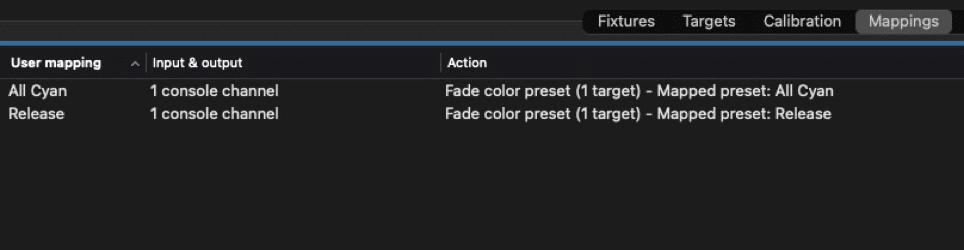
After this you can create a mapping to fade in a certain color preset or put the ‘Clear and Release’ preset on a button.
From the drop-down select ‘Target – Preset Color Fade’ –
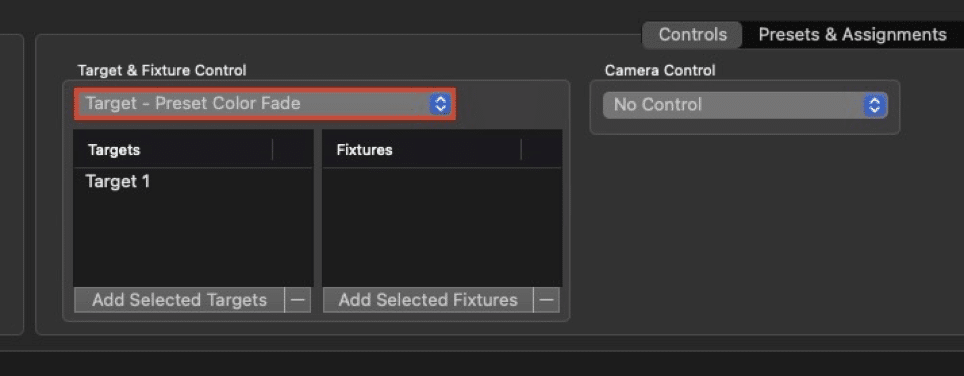
So, in the below example we’ve created a cyan preset to put on a fader & a release preset to put on a button.
We can also display the current state on your video window with the “display target color presets” option under the Setup tab. Each operator would be able to see which color preset they currently have active for their target on the video window.